Participant Guide for the SMAAT Mobile App
This guide is for Participants using the SMAAT app on iOS or Android to join research studies, complete surveys, and contribute data securely.
Welcome to the SMAAT (Sensor-based Mobile Assessment and Tracking) mobile app. Whether you’re participating in academic research, clinical studies, or behavioral experiments, this guide walks you through every step—from creating an account to managing your study participation.
The SMAAT app lets you engage with studies by completing surveys, enabling sensor data collection (e.g., location, motion), and receiving notifications. Your data is handled securely, and the app is designed to keep participation straightforward.
Creating Your Participant Account
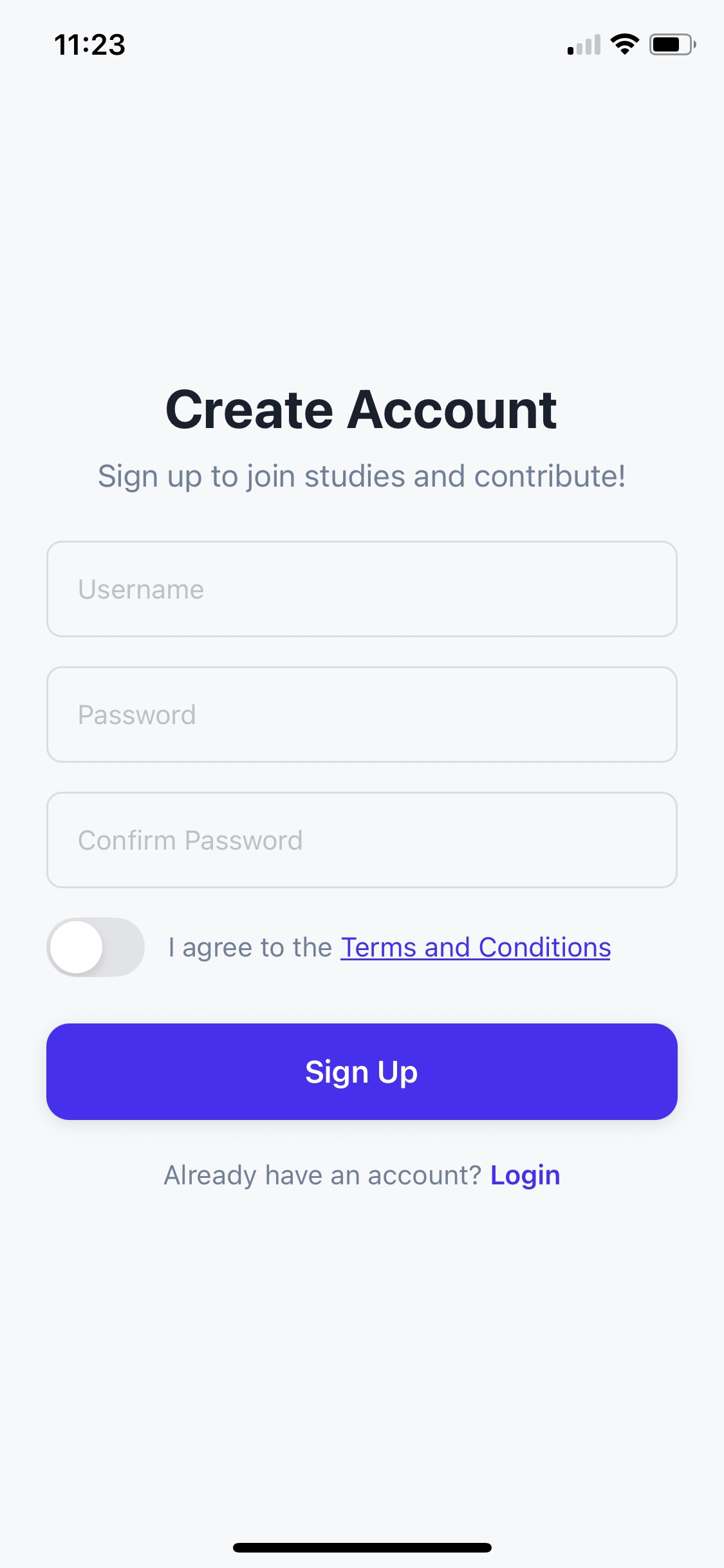
To start participating in studies, create a participant account in the SMAAT mobile app:
- Download the SMAAT app from the App Store (iOS) or Google Play Store (Android).
- Open the app and select Sign Up. Enter a unique username, a secure password, and confirm your password.
- Agree to the Terms and Conditions and tap Sign Up.
- If you already have an account, tap Login, enter your username and password, and sign in. If you’ve forgotten your password, tap Forgot Password?, enter your email, and follow the reset link.
Troubleshooting tip: If you see “Username already taken,” choose a different username. If you don’t receive a password reset email, check your spam/junk folder or contact study support.
Finding and Joining a Study
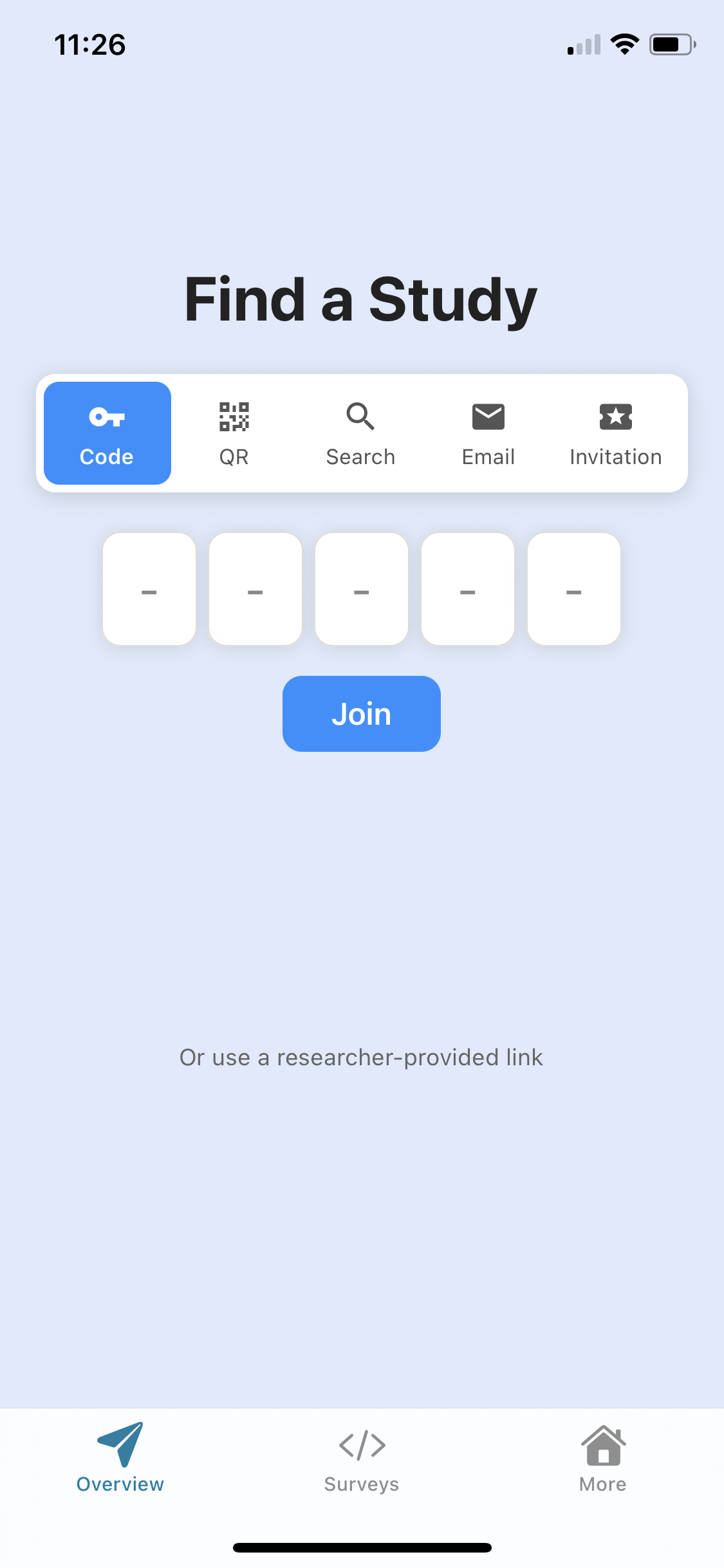
Once your account is set up, you can join a research study in several ways:
- Study Code: Enter the study code provided by the researcher and tap Join.
- QR Code: Scan the invitation QR code using the app’s QR scanner.
- Search: Browse public studies and select one to join.
- Email Invitation: Enter your email address if you received a personal invitation.
- Three-Word Invitation Code: Enter the three-word code provided by the researcher.
- Direct Link: Tap a link provided by the researcher to join directly.
After selecting a study, you’ll go through onboarding:
- Review the study description to understand purpose and requirements.
- Provide informed consent by agreeing to the study’s terms.
- Enable required permissions (e.g., notifications, accelerometer) when prompted.
Note: You can review consent and permissions later in the study details.
Navigating the SMAAT App
The SMAAT app is organized into three main tabs: Overview, Surveys, and More.
Overview Tab
Your home screen after joining a study. It shows:
- Study Description: Key details about the study.
- Study Length: Duration of the study.
- Participant Code: Your unique identifier.
- Study Details: Researchers, dates, and consent form.
- Permissions: Links to manage permissions.
- Leave Study: Option to exit the study.
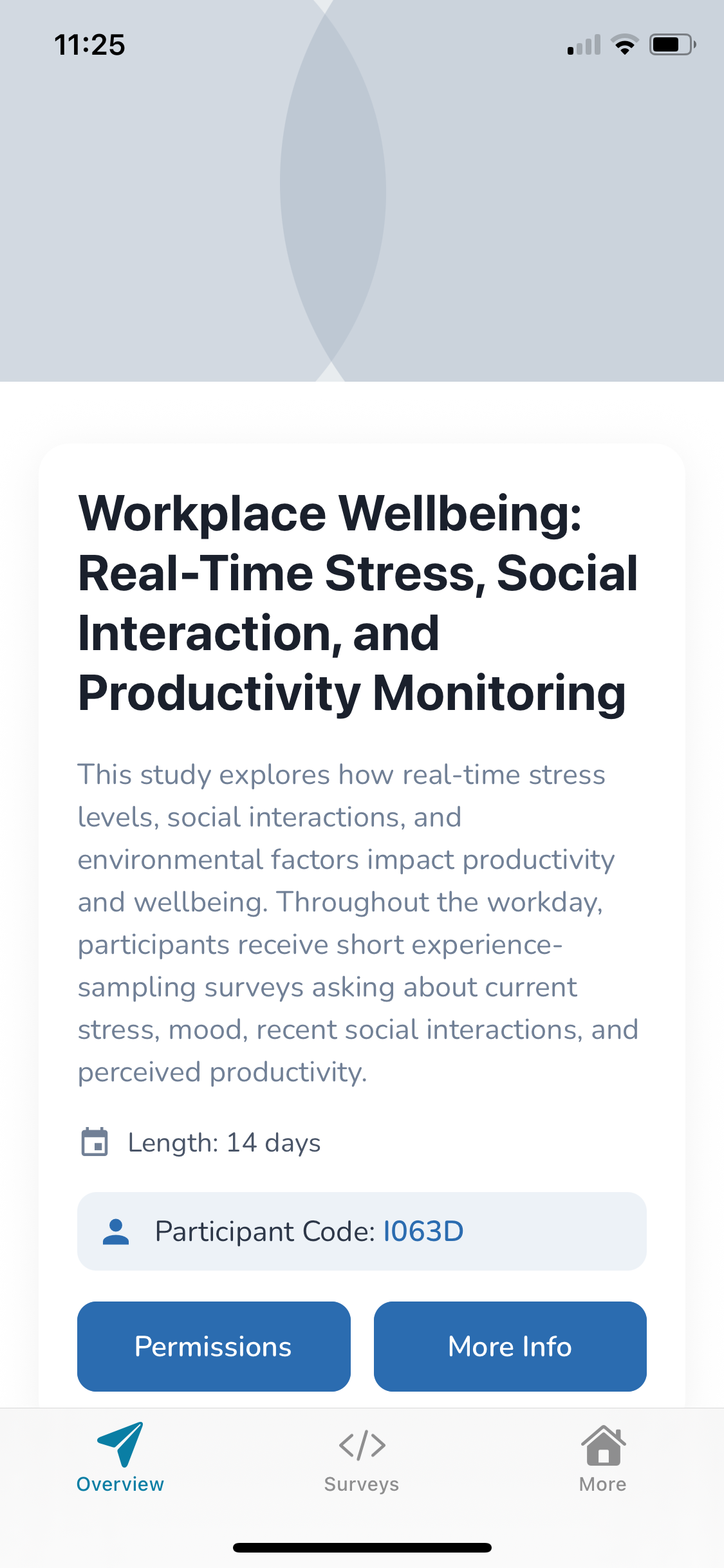
The Overview tab with key study information and options. Surveys Tab
Lists all active surveys. You’ll receive notifications when new surveys are available. You can also:
- Browse surveys by day using arrow buttons.
- Tap the date to open a date picker.
- View your survey responses (unless encrypted by the study author).
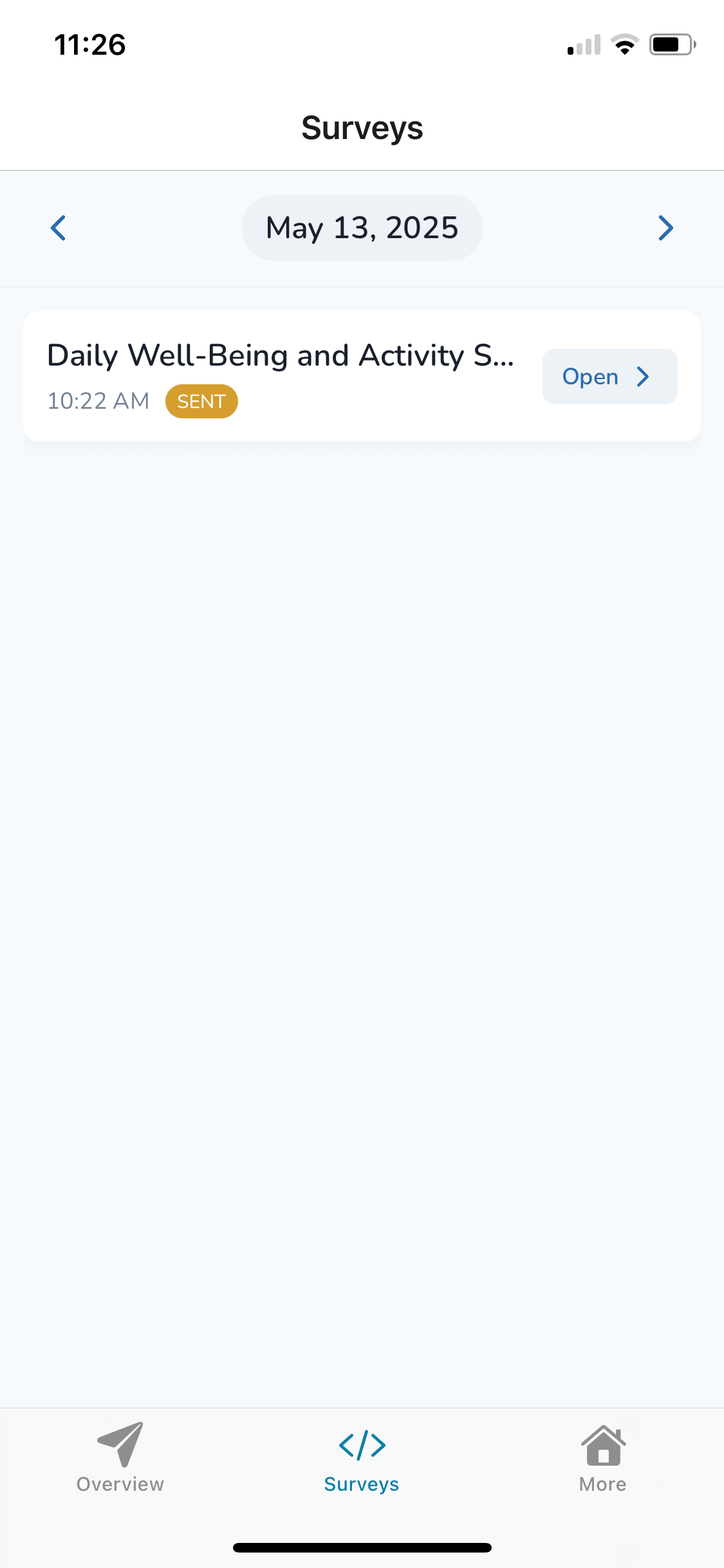
The Surveys tab with available surveys and navigation. More Tab
Provides additional options:
- Find a Study: Search for new studies.
- Settings: Manage your account.
- About: Learn more about the app.
- Sign Out: Log out of the app.
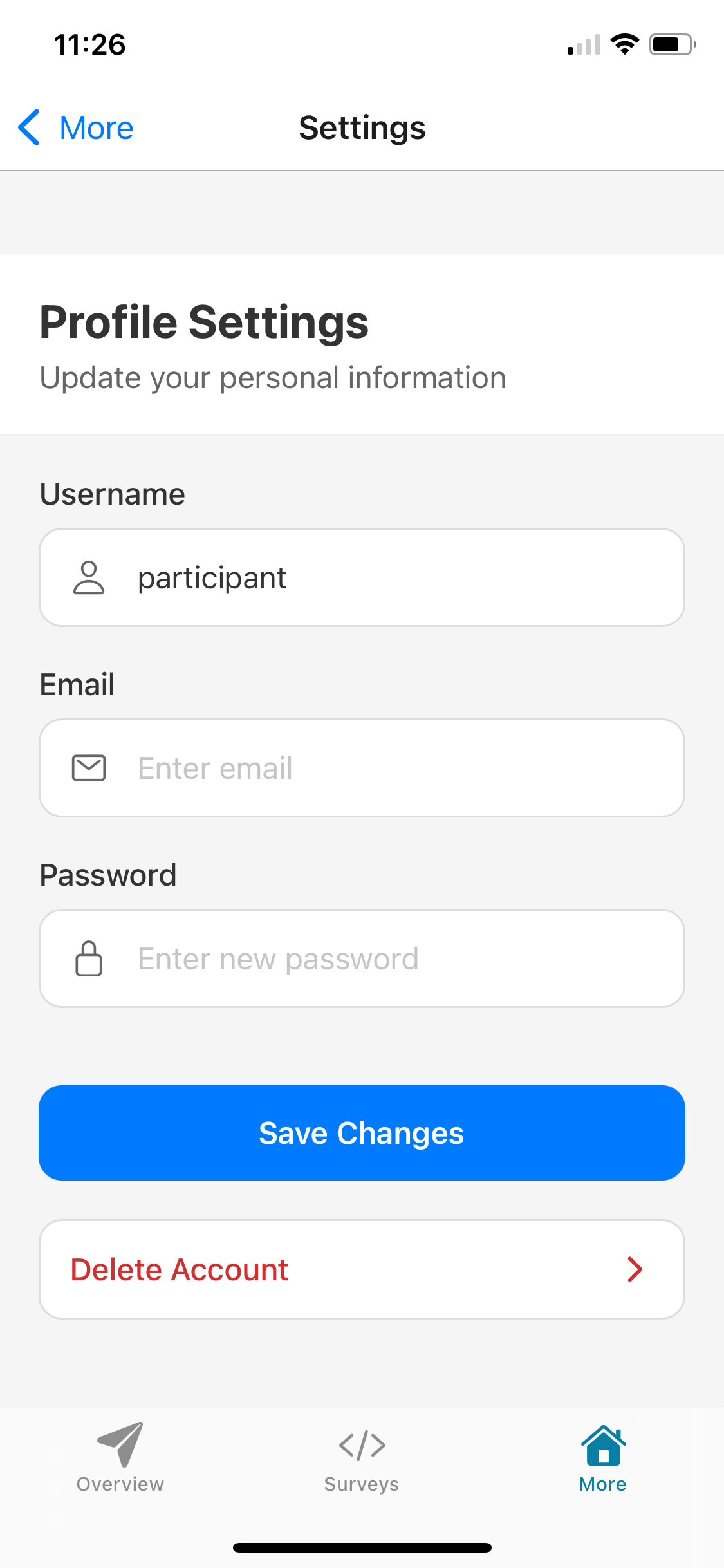
Managing Your Account Settings
In the Settings screen (More tab), you can:
- Change Username: Update your username.
- Add Email: Link an email for password recovery.
- Change Password: Update your password.
- Delete Account: Permanently delete your account and data.
Warning: Deleting your account is irreversible and removes all data from the app. If unsure, contact the study researcher first.
Frequently Asked Questions
Need more help with the app or your study? Visit our FAQ page for answers about joining studies, completing surveys, and managing your account.